Analytics preferences
Off by default. Private notes, source URLs, file names and account identifiers are not sent. You can change this setting here at any time.
Learn the current supported formats and a safe path for Word documents.
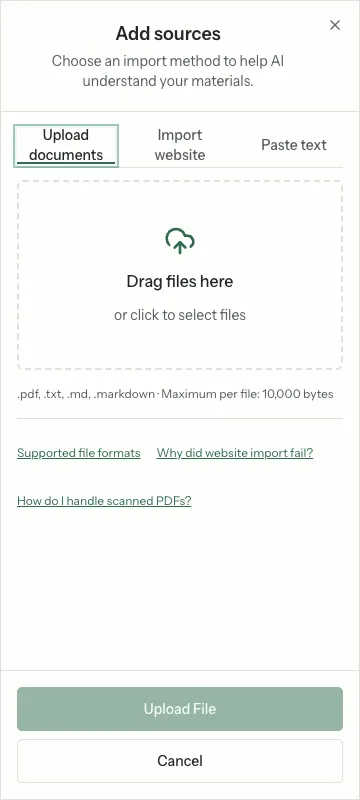
The current SaaS file picker accepts PDF, TXT and Markdown (.md). Direct Word (.doc/.docx) upload is not available in this interface. Export Word to a PDF with selectable text, save as TXT, or copy its text into the text importer.
Open the target notebook, then choose Add sources → Upload File. Select a supported file and use the upload button. Creating a source and finishing its processing are separate steps.
Wait for processing to finish. Open the source and check that the expected text was extracted before using it for questions. If it fails, read the displayed error before retrying; do not repeatedly submit the same file.
A PDF containing only images may not yield readable text. This upload path does not promise automatic OCR. Use an OCR tool you trust, verify its output, then upload the text PDF or paste the extracted text.
Off by default. Private notes, source URLs, file names and account identifiers are not sent. You can change this setting here at any time.