Analytics preferences
Off by default. Private notes, source URLs, file names and account identifiers are not sent. You can change this setting here at any time.
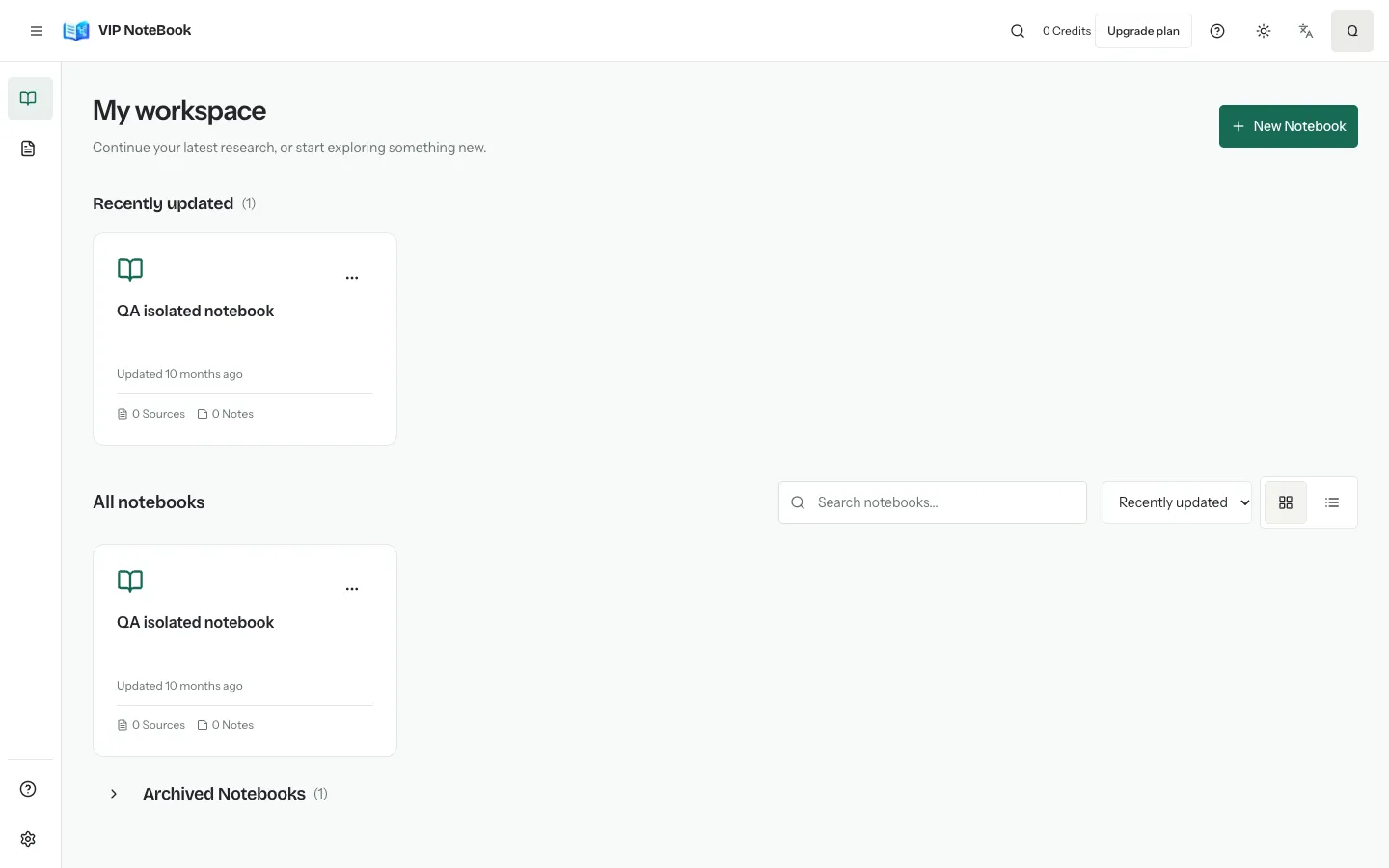
Organize PDFs, public webpages and pasted text in private notebooks. Ask questions against ready sources and keep the references for your research.
Start with the materials you want to understand. VIP NoteBook keeps your sources, questions and notes together in a private workspace.
Keep each topic in its own notebook. Find your materials, continue your research and add new sources from one place.
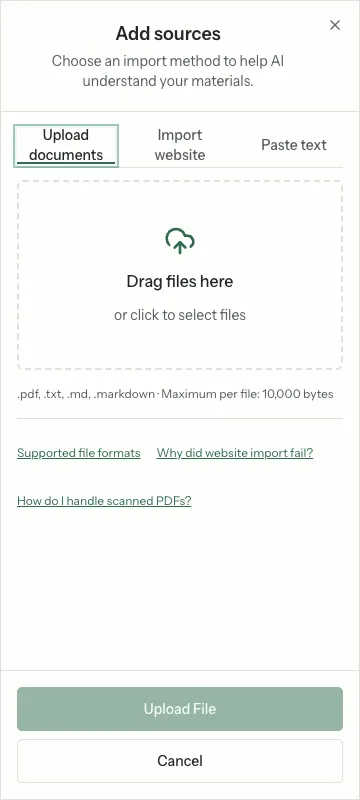
Import text-based PDF, TXT or Markdown files. Check each file’s progress and wait for the source to become ready before asking questions.
Word files need conversion to PDF or text. Scanned PDFs are not promised automatic OCR. Supported formats and the actual account size limit appear in the upload dialog.
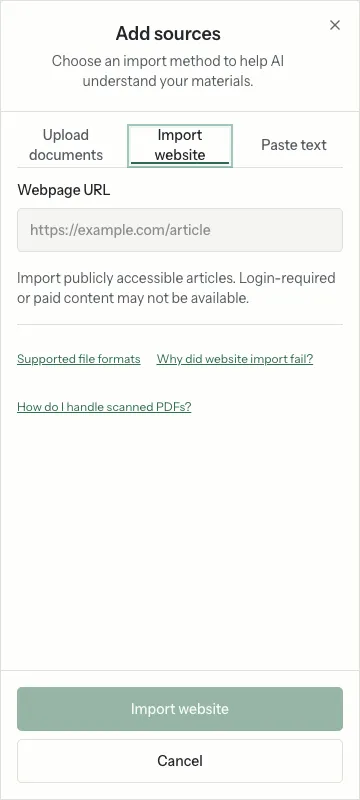
Import one public HTTP(S) webpage at a time. The service extracts readable text and saves a source snapshot for indexing.
Login pages, paywalls and verification challenges are not bypassed. A failed fetch shows its reason and can be retried where supported; a saved snapshot is reused for indexing retries.
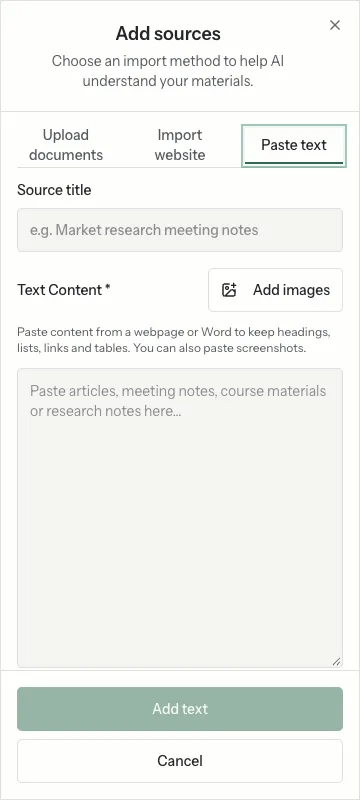
Paste meeting notes, course materials or research excerpts directly. Add a title if useful, and keep paragraphs and line breaks.
The editor shows the server’s character and byte limits. Failed submissions keep your draft; switching import tabs does not discard it.
Choose ready sources in one notebook, ask a focused question, and inspect the cited material before using the answer.
A completed upload is not an indexed source. Processing and failed sources stay out of retrieval. AI answers can still be incomplete or incorrect, so verify the original material.
Lecture notes + reading materials
Ask which concepts appear across the readings, then check the cited passages.
See the workflowPapers + public articles
Compare claims and disagreements within one topic. Verify the evidence in the original sources.
See the workflowMeeting notes + reference documents
Organize background material and ask what decisions or unanswered questions it contains.
See the workflowExample questions illustrate possible uses; they are not generated results or promises of accuracy.
Compare evidence across source documents, prepare reading notes, or collect material for a project. Keep each topic in its own notebook and review citations rather than relying on an unsupported summary.
Research workflowsAccount limits are checked by the service. Features that require configured AI services depend on that configuration. Flashcards and other undelivered tools are not listed as available features here.
View plans and limitsNo. Paste the text directly in the text tab. It is saved as a source in the selected notebook and follows the same indexing and readiness process.
Off by default. Private notes, source URLs, file names and account identifiers are not sent. You can change this setting here at any time.